
Introduction
Light Detection And Ranging, or LiDAR, is a technology that uses laser pulses to create detailed 3D maps of the Earth’s surface. The technology has been around since the 1960s, but recent advances have made it more common for mapping both natural and human-made environments. While most LiDAR systems are airborne, there are also ground-based systems (Dong and Chen 2018). LiDAR data is useful in many fields. It can be used to improve car safety and self-driving technology, and to map areas to identify archaeological sites. It is useful for precision agriculture applications, land management decisions, and even mosquito control (Debnath et al. 2023; Griffin et al. 2010; Li and Ibanez-Guzman 2020; Vinci et al. 2025).
Geographic information system (GIS) software can be used to convert data from airborne LiDAR systems into high-quality surface models. One common model created from LiDAR data is a digital terrain model (DTM). Digital terrain models are representations of the Earth’s terrain, based on ground-level elevation data. Because these models exclude surface features such as buildings or plants, they provide a clear view of the underlying terrain (Figure 1B), even when it is covered by dense vegetation (Figure 1A). Digital terrain models are widely used in applications including hazard management, hydrological analyses, and urban planning (Dong and Chen 2018). However, while DTMs contain crucial elevation data, they are presented in a two-dimensional gridded format that can sometimes be challenging to interpret. To create a more intuitive, three-dimensional view that highlights landscape features, hillshading is often applied (Figure 1C). Hillshading simulates the effect of light and shadow on the mapped terrain based on variation in elevation. It creates a more realistic view of the landscape (Kennelly 2008).

Credit: Maps created by Lindsay Campbell, UF/IFAS Florida Medical Entomology Laboratory, using ArcGIS Pro. Copyright 1995–2025 Esri. All rights reserved. Published in the United States of America.
This fact sheet provides practical instructions on how to create a DTM and a hillshade visualization from LiDAR data using ArcGIS Pro software. The guide is intended for anyone interested in processing publicly accessible LiDAR data or their own LiDAR data for further use, including community partners in industry and governmental agencies, scientists, and the public.
How does LiDAR work?
LiDAR systems use an active optical sensor that emits laser pulses toward a target while moving along a survey route. As pulses are reflected by objects, they return to the sensor, where they are detected and analyzed. These returns can be single, when all light is reflected from a solid surface such as the ground, or multiple, for example, when the pulse hits vegetation and is partially reflected by treetops, branches, and the ground below. The system calculates the precise distance between the sensor and the scanned object by measuring the time it takes for each laser pulse to return (Figure 2B). This distance is combined with information about the angles created by each laser beam and precise location data to determine highly accurate X, Y, and Z coordinates. Modern LiDAR systems can transmit thousands, and even millions, of pulses per second, converting the measurements of each reflected signal into a unique point in space (Dong and Chen 2018; Wasser 2024).
These points create a LiDAR point cloud, a dense three-dimensional representation of the scanned surface (Figure 2). Each point in the cloud can be assigned a classification that identifies the type of object that reflected the laser pulse, such as ground, tree canopy, or building. A useful processing step for aerial LiDAR data is the identification of ground points (Figure 2C). This classification is key to many post-processing applications, such as creating DTMs and for classification of other points in the cloud based on their distance to the ground (Dong and Chen 2018; Wasser 2024).
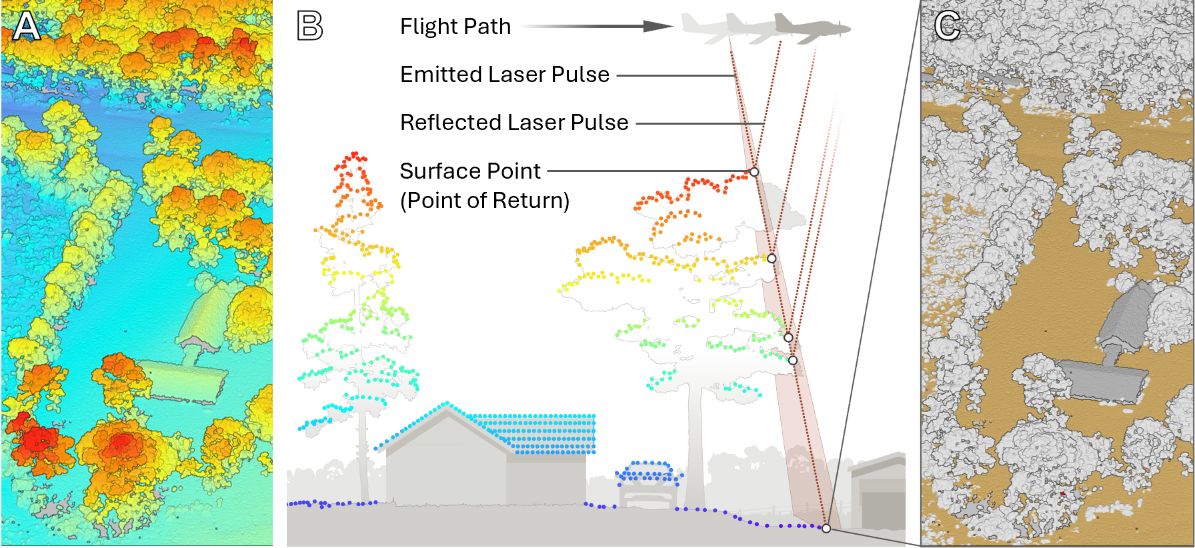
Credit: Amely Bauer, UF/IFAS Florida Medical Entomology Laboratory, using ArcGIS Pro. Copyright 1995–2025 Esri. All rights reserved. Published in the United States of America.
Software Requirements
Various tools are available for accessing and processing LiDAR data to create DTMs, including both open-access and licensed software. This guide was developed on a Windows 11 operating system using the following applications and software:
- A web browser (free), such as Google Chrome, Microsoft Edge, or Mozilla Firefox
- DownThemAll (free), available via https://www.downthemall.net
- ArcGIS Pro v3.4 (licensed), including the 3D Analyst toolbox
Access to these programs is necessary to follow the instructions in this publication. Users working with different software or other operating systems may need to take additional or alternative steps to access and process LiDAR data. Users without administrator rights on their device should contact their IT support for assistance with software installation.
Guide Overview
This guide provides users with instructions that detail how to perform the following tasks:
- Access and download LiDAR point cloud data from the Florida Geographic Information Office (Florida GIO) Portal
- Convert data from LAZ to the LAS file format
- Create an LAS dataset to work on multiple point cloud files at once
- Assign classification to LiDAR points
- Generate a digital terrain model
- Apply hillshading to create a three-dimensional visualization of the digital terrain model
Downloading LiDAR Data from the Florida Geographic Information Office Portal
Florida GIO provides free access to LiDAR data through the Florida Peninsula LiDAR Dashboard at floridagio.gov. The available data includes both the source LAS files and original resolution DTMs (referred to as DEMs [digital elevation models]), which can be downloaded by tile or by set. Typically, sets include all tiles available for each county, except for data from the Florida Panhandle. LiDAR data can be accessed through the Download Data button above the dashboard map. To download a set of tiles, users need to select the View by Set option below the dashboard, then click on Download by Set (Figure 3).
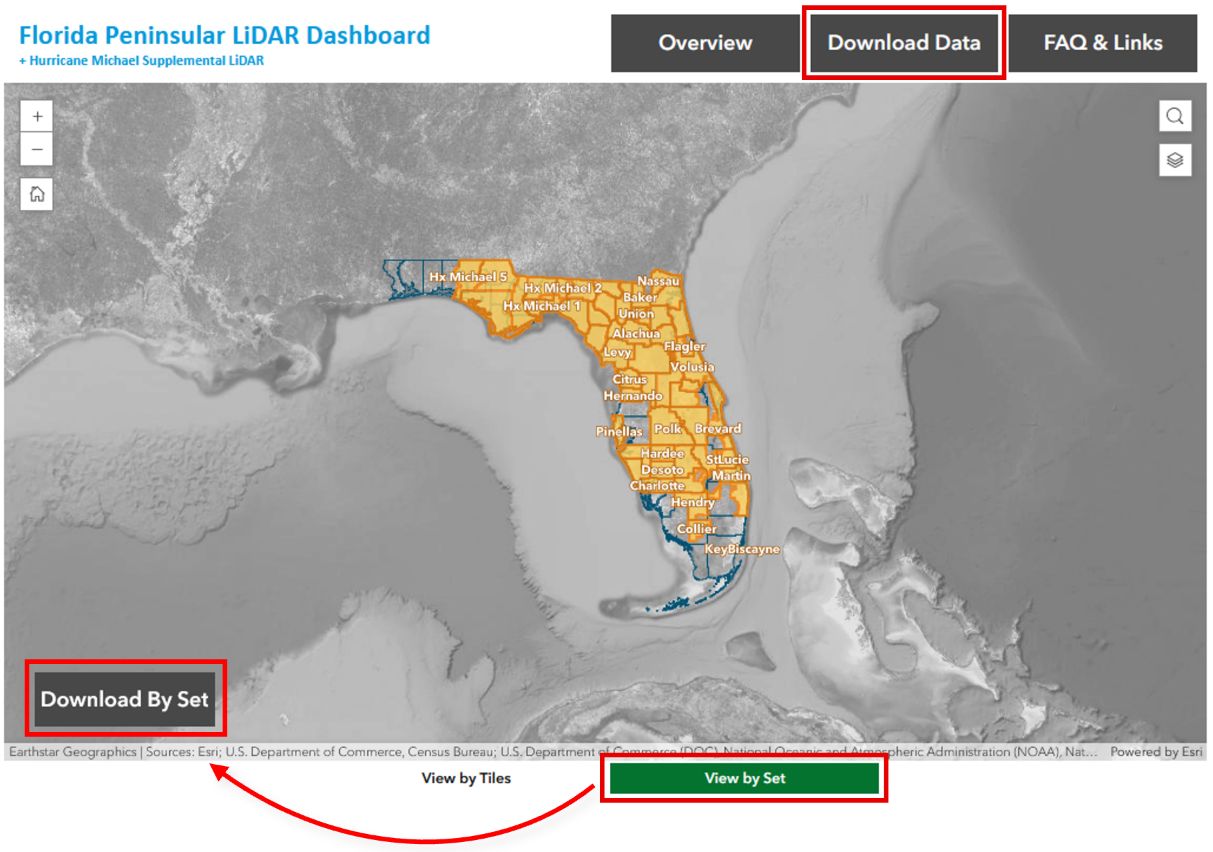
Credit: Screenshot of the Florida GIO dashboard with annotations by Lindsay Campbell, UF/IFAS Florida Medical Entomology Laboratory.
This action opens the “Download LiDAR data in bulk” document in a new browser tab. The document contains several links that provide access to the data organized in different groups, including a table with named hyperlinks to tile sets shown on the dashboard. Clicking on a name in the LiDAR point clouds column of this table opens an associated text file in the tab (Figure 4).
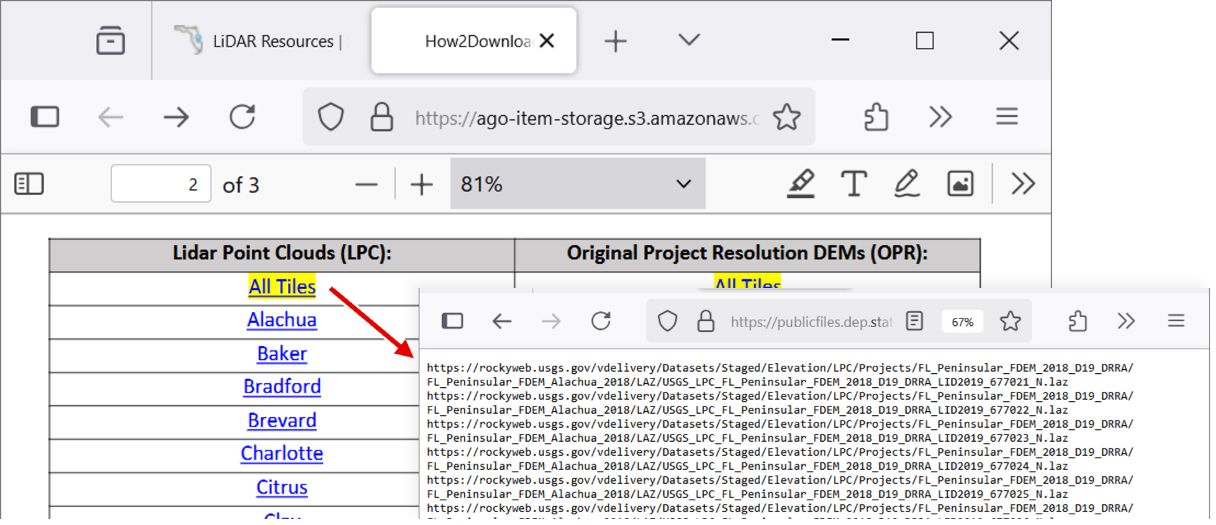
Credit: Screenshot of the Florida GIO dashboard with annotations by Lindsay Campbell, UF/IFAS Florida Medical Entomology Laboratory.
This new text file contains links (starting with https://) to all point cloud tiles associated with the set, where each link downloads a specific file. Point cloud files can be downloaded individually by right-clicking a highlighted link text, then choosing the Open Link option in the context menu. DownThemAll, a browser add-on that allows users to bulk download files in the browser, is recommended for downloading multiple point cloud files (Figure 5). After clicking on the Download button, DownThemAll opens a new tab in which the queued downloads can be managed.
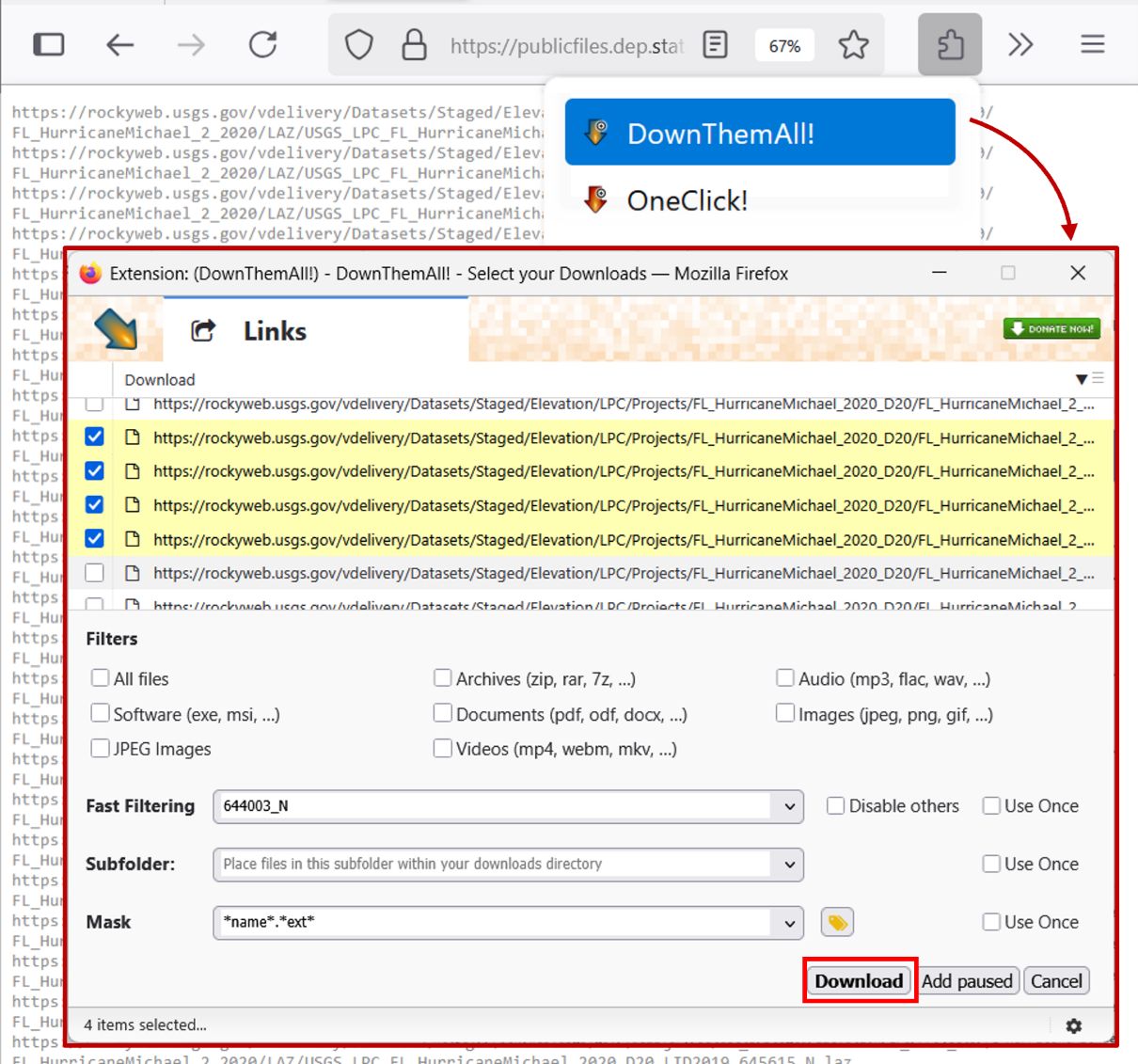
Credit: DownThemAll! screenshot with annotations by Lindsay Campbell, UF/IFAS Florida Medical Entomology Laboratory.
For the example shown in this guide, four-point cloud files from the “Hx Michael Batch 2” set are processed to generate an example DTM and hillshade visualization. Users who wish to recreate the processing steps and example output can search the text file corresponding with the tile set (https://publicfiles.dep.state.fl.us/OTIS/GIS/data/FL_Peninsular_LiDAR_Lists/LAS/Hx_Michael_2_LAS.txt) for the file names below to access the respective download links:
- USGS_LPC_FL_HurricaneMichael_2020_D20_LID2019_644002_N.laz
- USGS_LPC_FL_HurricaneMichael_2020_D20_LID2019_644003_N.laz
- USGS_LPC_FL_HurricaneMichael_2020_D20_LID2019_644004_N.laz
- USGS_LPC_FL_HurricaneMichael_2020_D20_LID2019_644005_N.laz
All downloaded files are saved to the browser’s default download folder. Once the download is complete, the files can be moved to a different location, e.g., to a project-specific folder named after the county or name of the downloaded tile set, for subsequent processing. Tile downloads can be quite slow, and with file sizes typically ranging between 200 MB and 300 MB, enough space to store the files must be available on the computer. For instance, the “Hx Michael Batch 2” set includes over 500 tiles, and their download would require approximately 130 GB of local storage space.
Using ArcGIS Pro to Process LiDAR Data
Here, we first provide a brief overview of how to make a new project and work with tools in ArcGIS Pro to orient users, then continue with outlining the processing steps in the software. ArcGIS Pro organizes all work into projects, which store all related information and items in one folder. To start a new project, users can click the Map button on the ArcGIS Pro start page (Figure 6). This opens the New Project window. By default, projects are saved in a new folder. However, by unchecking the option Create a new folder for this project, the project can also be saved in the same folder where the downloaded LiDAR tiles are located.
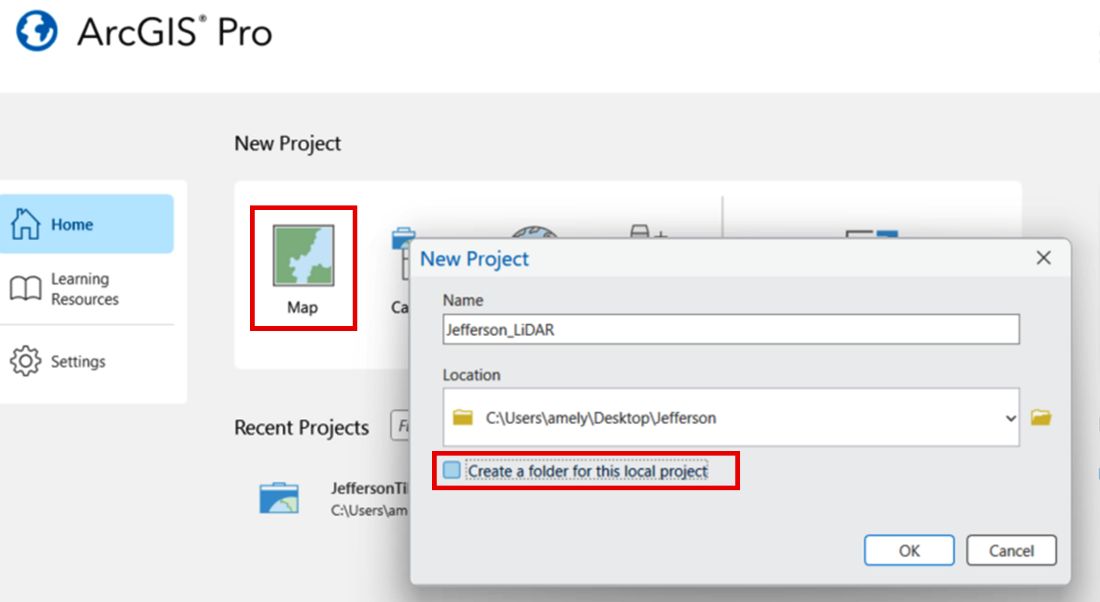
Credit: Screenshot from ArcGIS Pro. Copyright 1995–2025 Esri. All rights reserved. Published in the United States of America. Annotations by Lindsay Campbell, UF/IFAS Florida Medical Entomology Laboratory.
To create DTMs from LiDAR data in ArcGIS Pro, several geoprocessing tools are required. These tools can be accessed by clicking the Tools button under the Analysis tab, which opens the Geoprocessing pane. In this pane, users can search for and select the tools they need (Figure 7). Clicking on a tool will open its parameter settings. Parameters not mentioned in this guide will either remain empty or be filled automatically by ArcGIS Pro. After entering the required information, users can apply a tool by clicking the Run button at the bottom of the tool window.
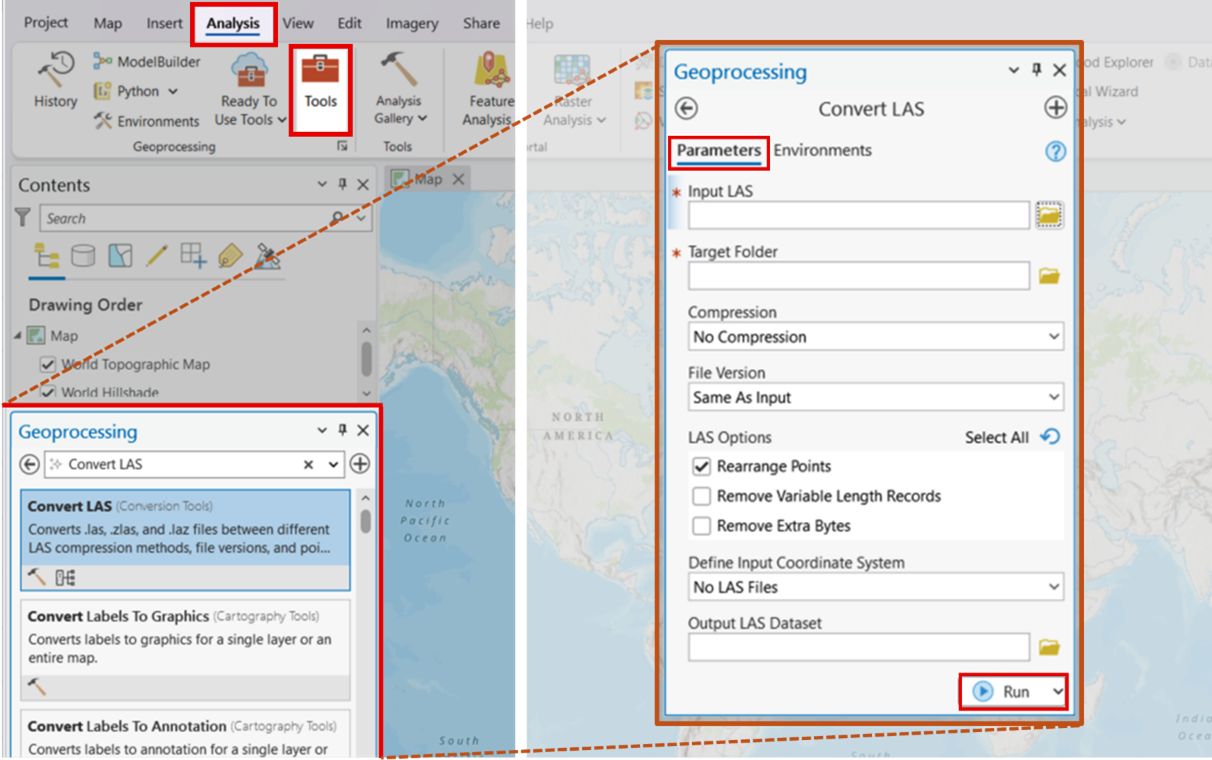
Credit: Screenshot from ArcGIS Pro. Copyright 1995–2025 Esri. All rights reserved. Published in the United States of America. Annotations by Lindsay Campbell, UF/IFAS Florida Medical Entomology Laboratory.
Creating a LAS Dataset
The LiDAR tiles downloaded from the Florida GIO dashboard are in the compressed LAZ file format. While LAZ files are much smaller than the uncompressed LAS format, ArcGIS Pro cannot work with them directly. To continue processing these files, users must first convert them into the format supported by ArcGIS Pro. The ArcGIS Pro Convert LAS tool allows users to convert either individual LAZ files or multiple files at once. Selecting the folder containing the downloaded LAZ files as Input LAS folder allows for batch processing of these files, eliminating the need to select and convert each file individually. The Target Folder option (e.g., "LAS") lets users choose where the converted files will be saved (Figure 8). Because this step will create uncompressed LAS files, users must ensure that enough storage space is available before applying the conversion tool. For example, converting the four tiles used in this guide increases the required storage from 1GB for the LAZ files to 5.4GB for the LAS files. Once the process is complete, the original LAZ files can be safely deleted.
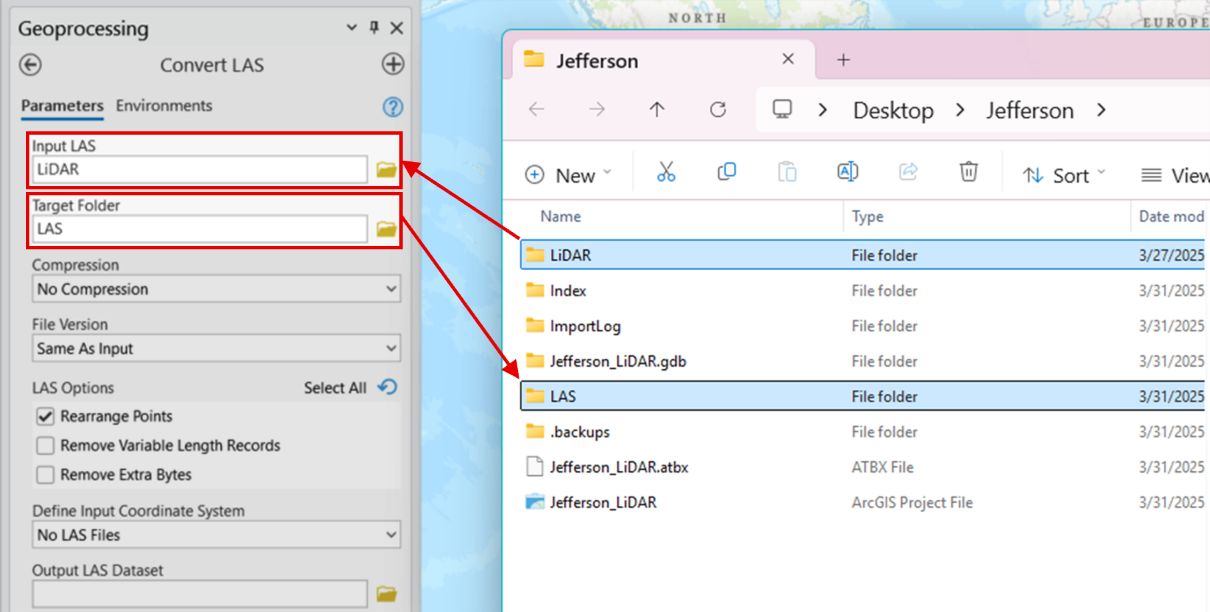
Credit: Screenshot from ArcGIS Pro. Copyright 1995–2025 Esri. All rights reserved. Published in the United States of America. Annotations by Lindsay Campbell, UF/IFAS Florida Medical Entomology Laboratory.
After conversion, the LAS files can be processed into a LAS dataset using the Create LAS Dataset tool. A LAS dataset is a reference that links to a collection of LAS point cloud files, making it easier to manage and work with large datasets. As with the previous step, selecting a folder as the Input Files will include all LAS files in that folder. In the Output LAS Dataset field, users can name the new dataset and choose the location where it will be saved (by default, this is the project folder). Unless specified, ArcGIS Pro will automatically assign the coordinate system of the input files (Figure 9). After processing, the new LAS dataset will be automatically added to the Contents pane and appear on the project map. On the map, the geographic area covered by the LiDAR data included in the LAS dataset will be visible, with boundaries of each tile outlined in red (Figure 9).
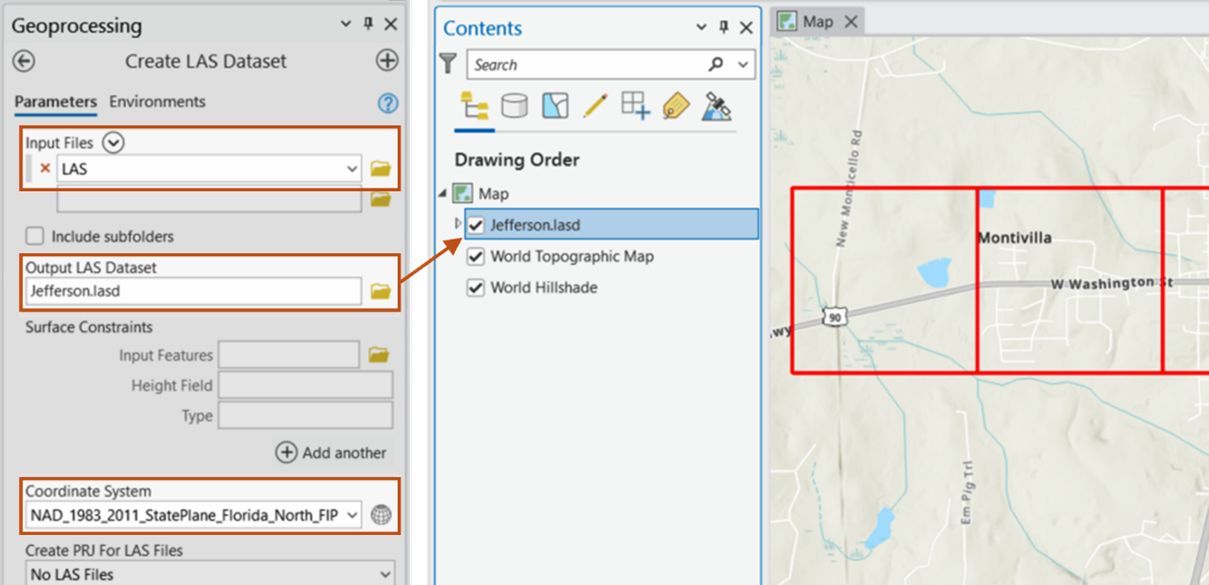
Credit: Screenshot from ArcGIS Pro. Copyright 1995–2025 Esri. All rights reserved. Published in the United States of America. Annotations by Lindsay Campbell, UF/IFAS Florida Medical Entomology Laboratory.
Classifying LAS Points
By zooming in on the tiles, individual data points that outline features such as buildings and trees, and that together form the LiDAR Point Cloud become visible. However, in many instances, not all points are fully or correctly classified when imported into a geoinformation system. To properly process the data, the points must be classified to identify the ground points, which will be used to create the DTM. Even when the goal is to create a DTM representing the bare earth terrain, it is recommended to classify all points within the point cloud, not just the ground points. This approach helps address potential classification errors and noise in the data while also enabling quality control to ensure that only ground points remain in the dataset during the subsequent filtering step.
To classify LiDAR points, the following ArcGIS Pro Classify LAS geoprocessing tools should be applied in the following order: Ground, Building, Overlap, Noise, and Height. Application of these tools typically only requires users to select the LAS dataset created in the previous step as Input LAS Dataset (Figure 10). However, it is recommended to confirm that appropriate input is applied to automatically filled fields in the Classify LAS Overlap tool, where sample size is defined by Sample Distance and Unit and should be approximately two to three times the size of the nominal point spacing of the LAS data (here: 2.7 US Survey Feet), and in the Classify LAS By Height tool, where Height Classification Class Code and Height determine the maximum height from ground that is used to assign LiDARpoints to a class (here: height 5, 25, and 50 for classes 3, 4, and 5, respectively).

Credit: Screenshot from ArcGIS Pro. Copyright 1995–2025 Esri. All rights reserved. Published in the United States of America. Annotations by Lindsay Campbell, UF/IFAS Florida Medical Entomology Laboratory.
Prior to filtering the point cloud, it is recommended to change the Basemap to Imagery under the Map tab (Figure 11A). This will display satellite images in the background of the point cloud, which provides context to areas where points are removed during the filtering step and allows for quality control (Figure 11B). Selecting the classified LAS dataset in the Contents pane makes the LAS Dataset Layer tab appear. To filter the LAS data to ground points, users can then click on the LAS Points button and select Ground.
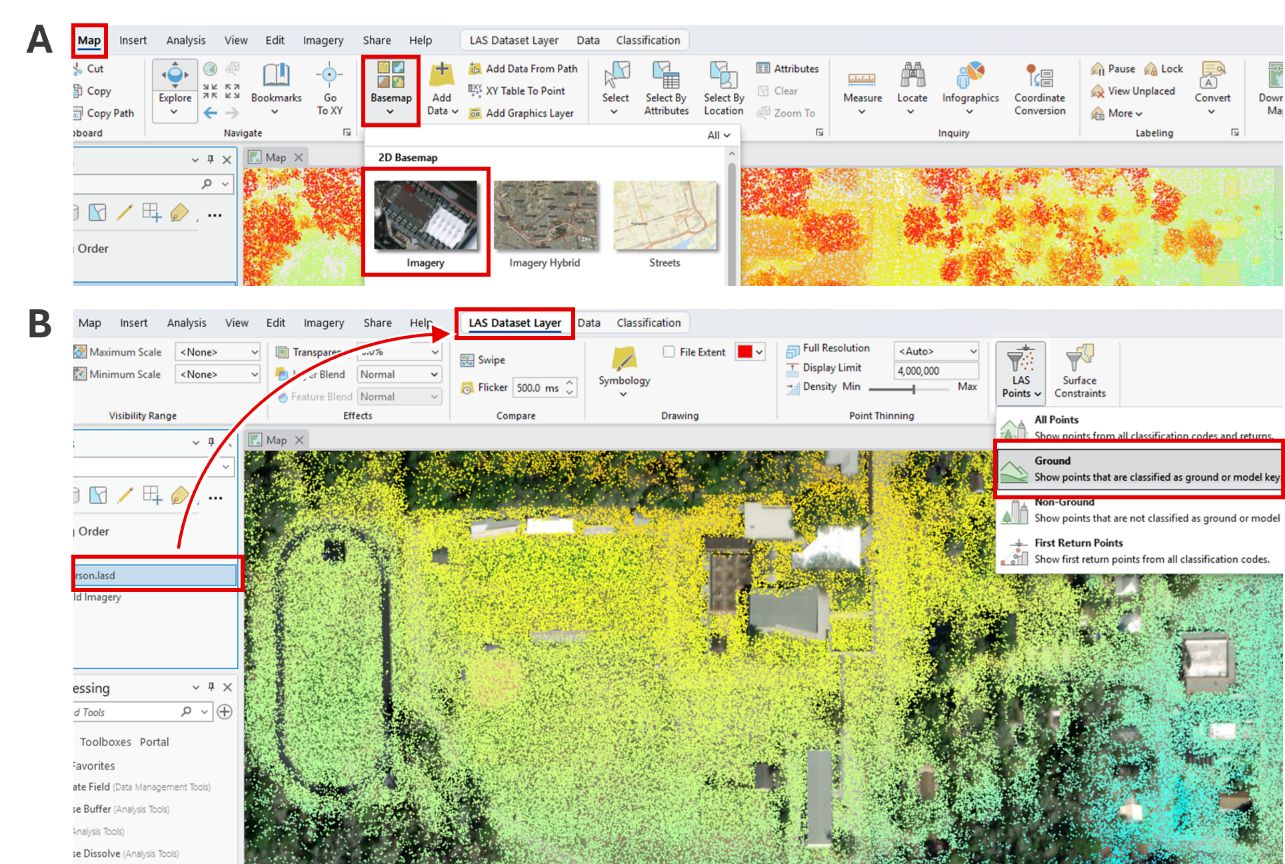
Credit: Screenshot from ArcGIS Pro. Copyright 1995–2025 Esri. All rights reserved. Published in the United States of America. Annotations by Lindsay Campbell, UF/IFAS Florida Medical Entomology Laboratory.
Creating a Digital Terrain Model
The LAS Dataset to Raster geoprocessing tool can now be used to create a DTM from the prepared LiDAR ground point data subset, which serves as the Input LAS Dataset. The user can assign an informative name for the temporary Output Raster generated by the tool and adjust raster properties by modifying parameter settings. For example, the Cell Assignment parameter determines how values are assigned to raster cells (in this example using Inverse Distance Weighting (IDW)), and Sampling Value (which in Figure 12 is 3) defines the cell size of the output raster (Figure 12).
After processing, the new raster layer will automatically appear in the Contents and on the map. This temporary file contains the DTM values, which can be saved for future use. Right-clicking on the layer opens a context menu where a permanent copy of the file can be exported. Under the Data option, selecting Export Raster opens a new pane that allows users to choose the output location and file name and modify raster properties before its export (Figure 12). By applying default settings, ArcGIS Pro assigns the same coordinate system as the LAS data and saves the raster as a TIFF file in the project folder. After the export is complete, the new raster file will be automatically added to the map, and the temporary raster can be safely deleted.
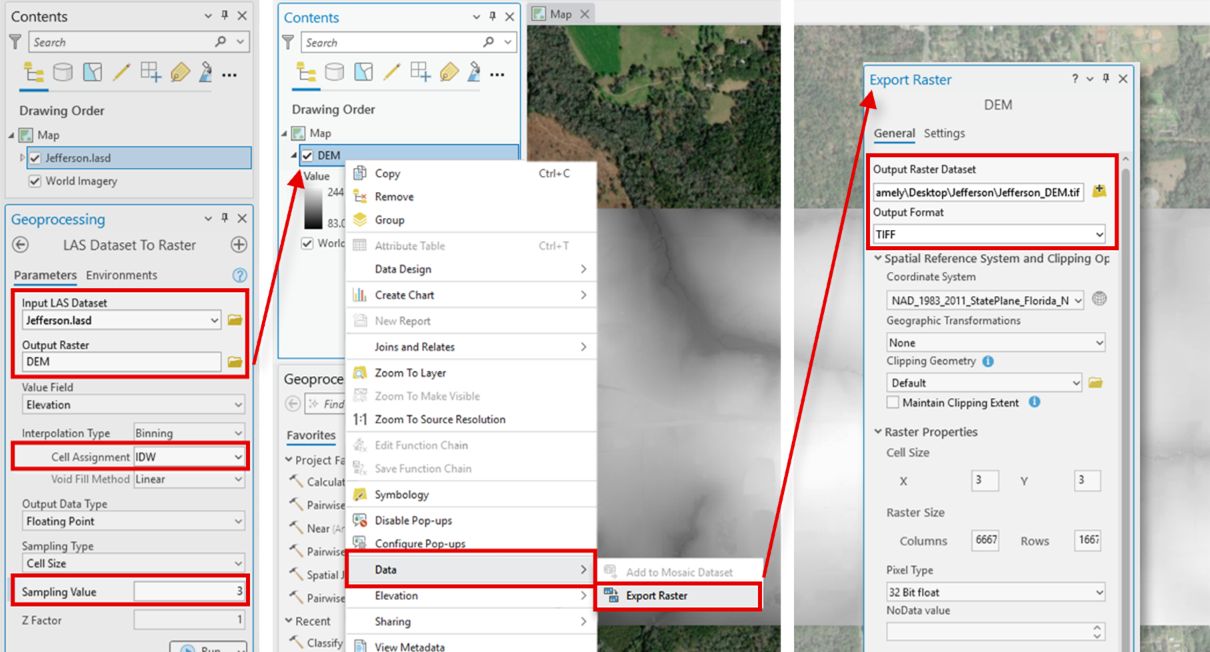
Credit: Screenshot from ArcGIS Pro. Copyright 1995–2025 Esri. All rights reserved. Published in the United States of America. Annotations by Lindsay Campbell, UF/IFAS Florida Medical Entomology Laboratory.
Generate Hillshades
The Hillshade geoprocessing tool creates a shaded relief by using elevation data from a surface raster and the direction of a light source. The DTM serves as Input raster, while the virtual light source is controlled by the parameters Azimuth (direction of the light) and Altitude (angle of light above the horizon). By default, the tool calculates hillshades with light coming from the northwest at a 45° angle, adding a new Output raster layer that represents the three-dimensional depiction of the terrain to the project (Figure 13). As in the previous step, the generated raster is temporary. Users should follow the instructions provided above to export and save the hillshade layer for future use.
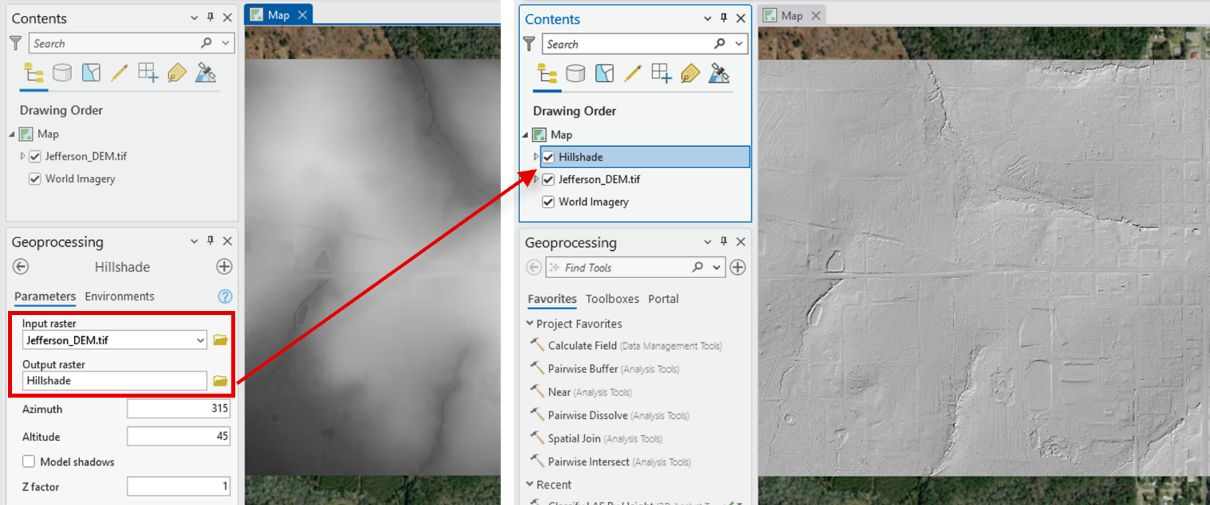
Credit: Screenshot from ArcGIS Pro. Copyright 1995–2025 Esri. All rights reserved. Published in the United States of America. Annotations by Lindsay Campbell, UF/IFAS Florida Medical Entomology Laboratory.
Conclusion
This publication intends to provide simple step-by-step instructions to create a DTM and hillshade visualization from LiDAR point cloud data. The guide was developed for the widely used Esri ArcGIS Pro software and uses openly accessible, real-world data as a case study for users to follow. As a result, the guide provides a reproducible example of a workflow that can be easily adapted to process other LiDAR data for a wide range of uses, with applications in agriculture, forestry, and many other fields.
References
Debnath, S., M. Paul, and T. Debnath. 2023. “Applications of LiDAR in Agriculture and Future Research Directions.” Journal of Imaging 9 (3): 57. https://doi.org/10.3390/jimaging9030057
Dong, P., and Q. Chen. 2018. LiDAR remote sensing and applications. Remote sensing applications series. CRC Press Taylor and Francis. https://doi.org/10.4324/9781351233354
Griffin, L. F., J. M. Knight, and P. E. R. Dale. 2010. “Identifying Mosquito Habitat Microtopography in an Australian Mangrove Forest Using LiDAR Derived Elevation Data.” Wetlands 30 (5): 929–937. https://doi.org/10.1007/s13157-010-0089-8
Kennelly, P. J. 2008. “Terrain Maps Displaying Hill-Shading with Curvature.” Geomorphology 102 (3–4): 567–577. https://doi.org/10.1016/j.geomorph.2008.05.046
Li, Y., and J. Ibanez-Guzman. 2020. “LiDAR for Autonomous Driving: The Principles, Challenges, and Trends for Automotive LiDAR and Perception Systems.” IEEE Signal Processing Magazine 37 (4): 50–61. https://doi.org/10.1109/MSP.2020.2973615
Vinci, G., F. Vanzani, A. Fontana, and S. Campana. 2025. “LiDAR Applications in Archaeology: A Systematic Review.” Archaeological Prospection 32 (1): 81–101. https://doi.org/10.1002/arp.1931
Wasser, L. A. 2024. The Basics of LiDAR—Light Detection and Ranging—Remote Sensing. National Ecological Observatory Network (NEON) Learning Hub. https://www.neonscience.org/resources/learning-hub/tutorials/lidar-basics